
By 2026, Minecraft has colonized more platforms than a particularly ambitious Enderman. It’s on phones, fridges (probably), and even the humble Chromebook—a device once relegated to Google Docs and wistful glances at real gaming rigs. But these lightweight laptops have quietly matured into surprisingly capable little block-breakers. If a Chromebook is gathering dust in a corner, it’s time to wake it up and let it finally earn its keep. Because, yes, there are three—count ’em, three—ways to get that familiar pixelated landscape up and running. Spoiler: one of them is free, one is slick, and one involves a little Linux magic that’ll make you feel like a wizard.
The Straightforward Store-Bought Bedrock Boulevard
The simplest route is to treat the Chromebook like any other Android device with delusions of grandeur. Head into the Google Play Store, search for Minecraft: Bedrock Edition, and bam—that blocky world unfolds before you. No terminal voodoo, no developer mode panic.
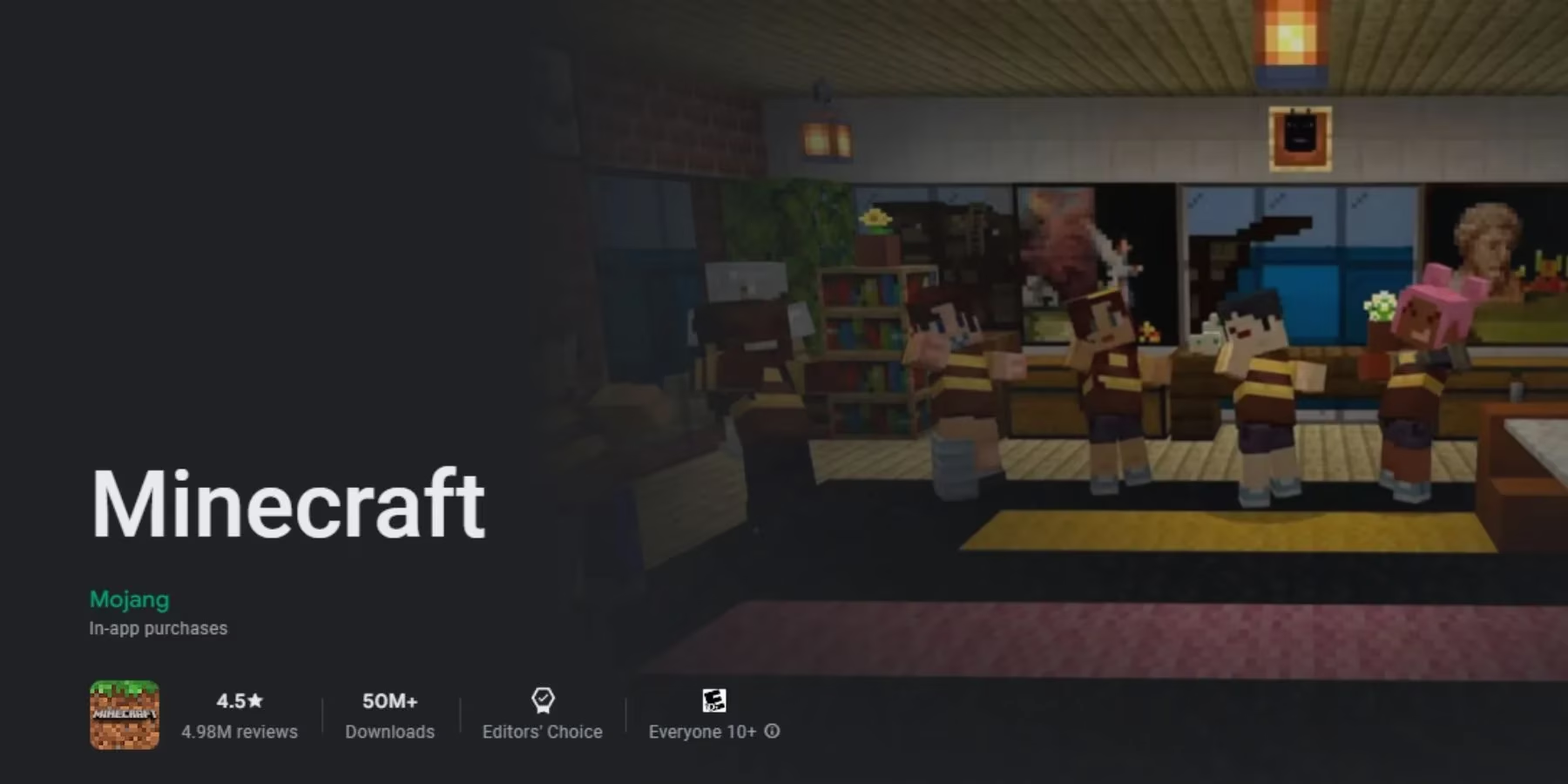
What makes this version truly charming is its crossplay superpower. A player on this Chromebook can pop into a friend’s world on an Xbox, Switch, or even a phone without anyone having to say “but what version are you on?” It just works, like a villager who actually understands his profession.
The catch? It’s not free. Mojang expects about $19.99 for the Chromebook fun, but if someone already owns the Android version (which itself is a steal at $7), they’re only a $13 upgrade away from bigger-screen bliss. And don’t forget to make sure the Chromebook itself is wide awake and updated before tapping that install button—Settings > About ChromeOS > Check for updates. A quick restart, and the pixelated piggies will be welcoming you in no time.
The Java Journey: When You Want the “Real Deal”
But some players—oh, they crave the definitive experience. They want mods, resource packs, and the ability to ride a bee into a Nether fortress while listening to a custom soundtrack. For them, only Minecraft: Java Edition will scratch that itch. Getting it onto a Chromebook is a bit like teaching a cat to fetch: possible, satisfying, but involving a few extra steps and a touch of patience.
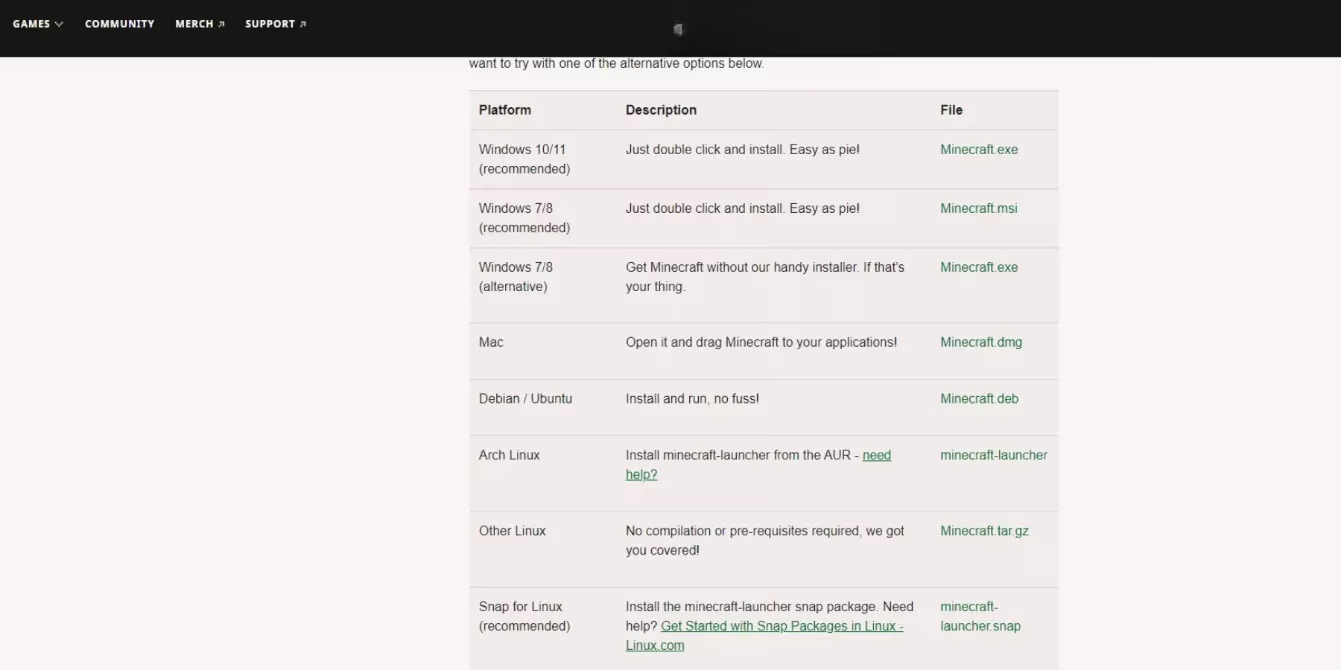
First, the Chromebook must embrace its inner penguin. Linux needs to be awakened under Settings > Advanced > Developers. Toggle on the Linux development environment and follow the prompts. It’s like installing a mini-Ubuntu beast inside the Chrome OS shell. Once the Debian system purrs to life, the real fun begins. Download the official Minecraft.deb file from the Minecraft website, drag it into the Linux Files folder, and crack open the Terminal app. A couple of commands will make the system ready: sudo apt-get install default-jdk and sudo apt-get install libsecret-1-0. Then a double-click on the .deb file, a confident tap on Install, and the game slides into place.
After that, hitting the search key and typing “Minecraft” brings up the Java icon, ready to accept those Mojang account credentials. Yes, it takes longer than the Bedrock method, but the reward is a full, unfiltered Java experience. (And honestly, what’s a little command-line tinkering between friends?)
The Zero-Cost Classic Canvas
Now, for the budget-minded, the impatient, or anyone stuck on a school-managed Chromebook that locks out all app installs: there’s a glorious, browser-based loophole. Mojang, in a moment of altruistic genius, released Classic Minecraft entirely on the web. No install, no account, no wallet groaning. Just a website and a dream.
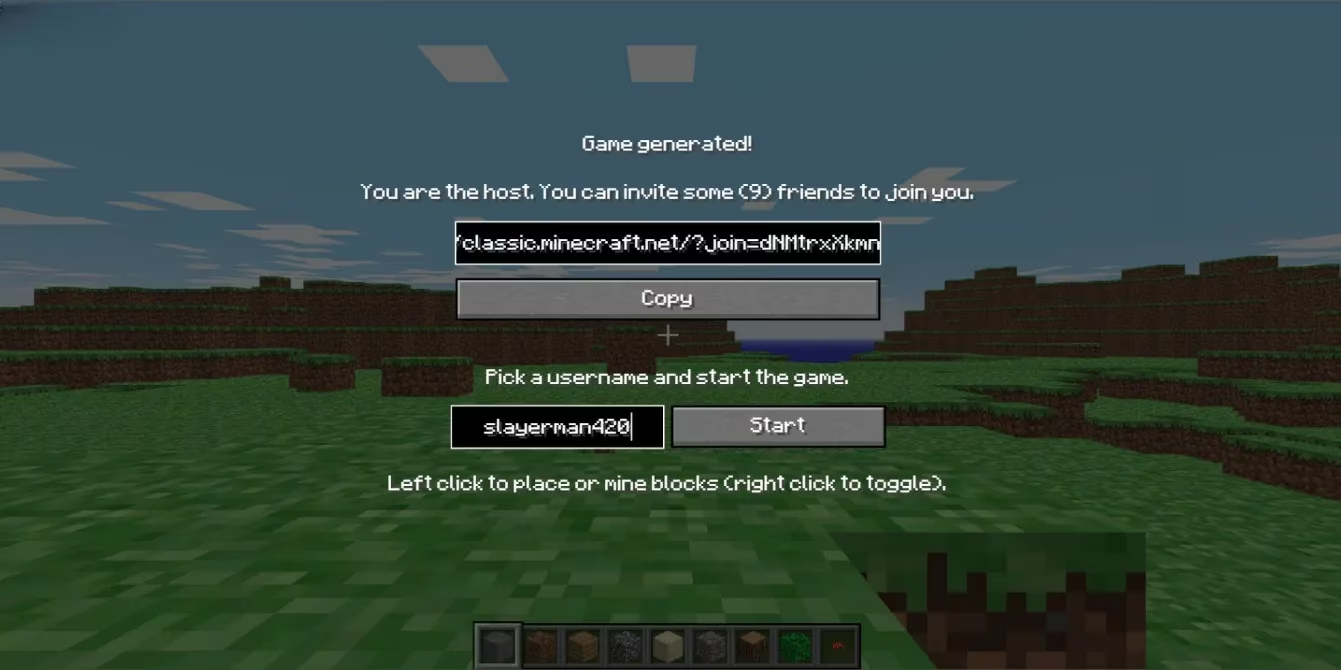
This version is a nostalgic time capsule—32 blocks of pure, unadorned creativity. No hunger bar, no sprinting, just the essence of placing and breaking cubes while a greenish sky watches over. It runs on any Chromebook, even those locked tighter than a guardian temple. The player doesn’t even break a sweat; the browser does all the heavy lifting. It’s perfect for a quick lunchtime build or proving to a sibling that yes, this little device can game.
Which Path Should a Crafty Chromebook Traveler Take?
Here’s the quick and dirty breakdown to help decide:
| Method | Cost | Performance | Setup Difficulty | Best For |
|---|---|---|---|---|
| Google Play (Bedrock) | $19.99 (or $13 upgrade) | Smooth, touch-friendly | 🟢 Very Easy | Casual builders, cross-platform play |
| Linux (Java) | Free after .deb download | Requires decent Chromebook | 🟡 Moderate | Mod lovers, hardcore server communities |
| Web Classic | Free! | Light as a feather | 🟢 Instant | Quick fixes, restricted devices, nostalgia |
Each method has its own flavor. The Bedrock route feels like installing a polished app, the Java route is for tinkerers who like to whisper sweet commands to a terminal, and the Classic route is the equivalent of finding a vintage arcade machine in a laundromat—simple, charming, and surprisingly satisfying.
In 2026, the Chromebook is no longer just a thin client pretending to be a computer. It’s a legitimate Minecraft machine, hiding in plain sight. All it takes is a few clicks, a little Linux whispering, or just opening a browser tab. The blocks await. Go place ’em.{
"title": "Minecraft on Chromebook: 3 Sneaky Ways to Mine and Craft on a Budget Laptop",
"content": "By 2026, Minecraft has colonized more platforms than a particularly ambitious Enderman. It’s on phones, fridges (probably), and even the humble Chromebook—a device once relegated to Google Docs and wistful glances at real gaming rigs. But these lightweight laptops have quietly matured into surprisingly capable little block-breakers. If a Chromebook is gathering dust in a corner, it’s time to wake it up and let it finally earn its keep. Because, yes, there are three—count ’em, three—ways to get that familiar pixelated landscape up and running. Spoiler: one of them is free, one is slick, and one involves a little Linux magic that’ll make you feel like a wizard.
The Straightforward Store-Bought Bedrock Boulevard
The simplest route is to treat the Chromebook like any other Android device with delusions of grandeur. Head into the Google Play Store, search for Minecraft: Bedrock Edition, and bam—that blocky world unfolds before you. No terminal voodoo, no developer mode panic.
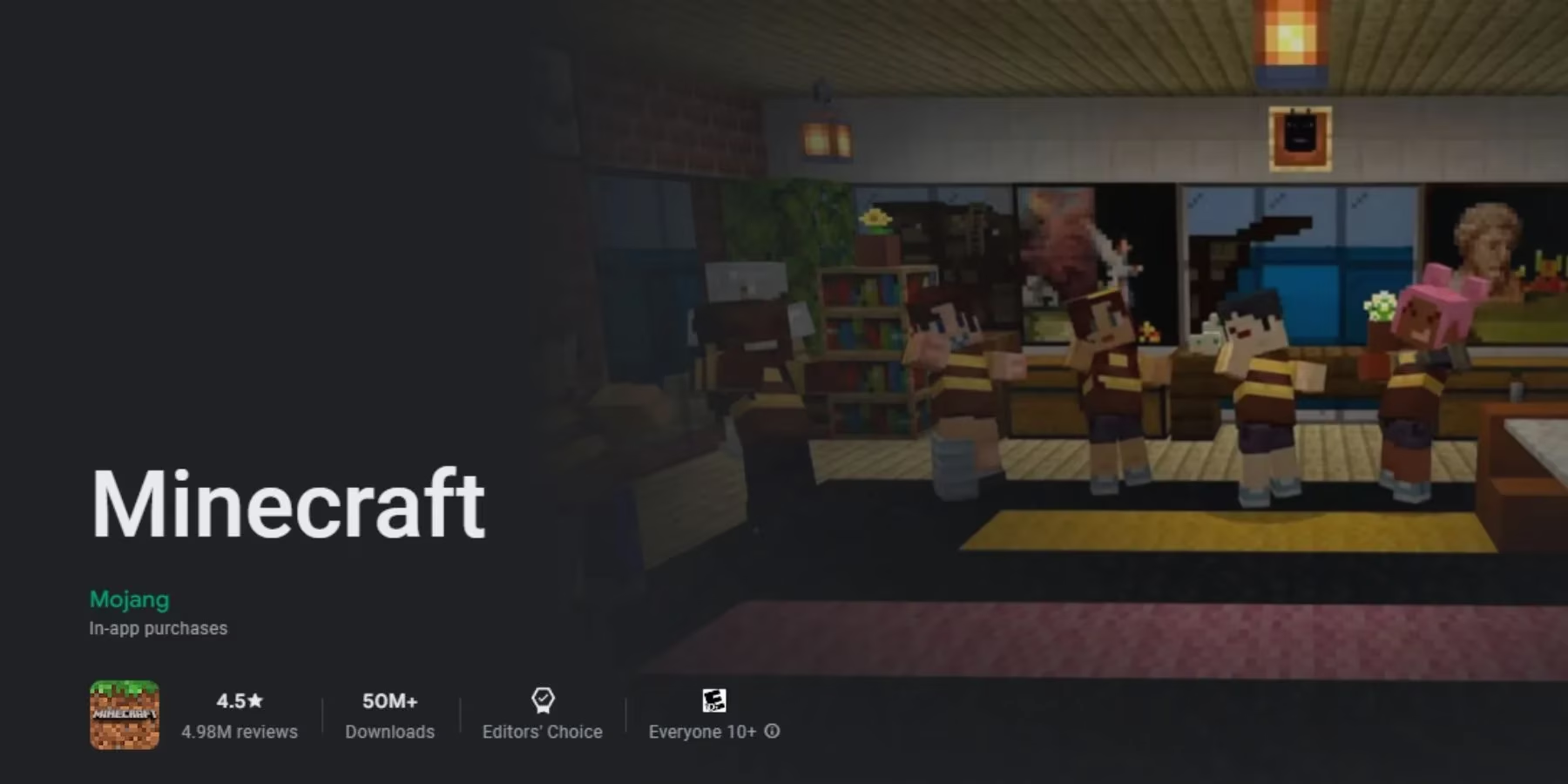
What makes this version truly charming is its crossplay superpower. A player on this Chromebook can pop into a friend’s world on an Xbox, Switch, or even a phone without anyone having to say “but what version are you on?” It just works, like a villager who actually understands his profession.
The catch? It’s not free. Mojang expects about $19.99 for the Chromebook fun, but if someone already owns the Android version (which itself is a steal at $7), they’re only a $13 upgrade away from bigger-screen bliss. And don’t forget to make sure the Chromebook itself is wide awake and updated before tapping that install button—Settings > About ChromeOS > Check for updates. A quick restart, and the pixelated piggies will be welcoming you in no time.
The Java Journey: When You Want the “Real Deal”
But some players—oh, they crave the definitive experience. They want mods, resource packs, and the ability to ride a bee into a Nether fortress while listening to a custom soundtrack. For them, only Minecraft: Java Edition will scratch that itch. Getting it onto a Chromebook is a bit like teaching a cat to fetch: possible, satisfying, but involving a few extra steps and a touch of patience.
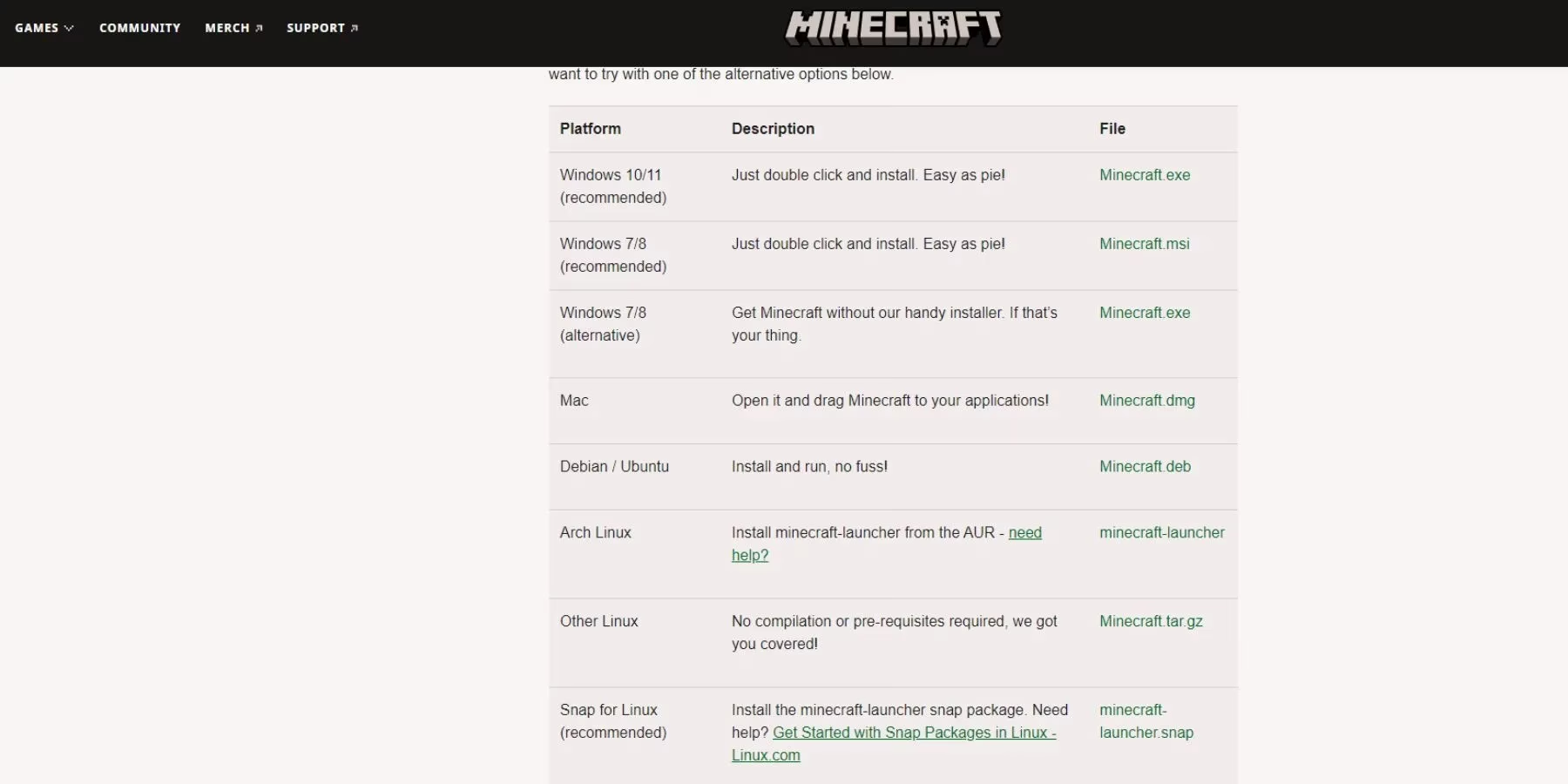
First, the Chromebook must embrace its inner penguin. Linux needs to be awakened under Settings > Advanced > Developers. Toggle on the Linux development environment and follow the prompts. It’s like installing a mini-Ubuntu beast inside the Chrome OS shell. Once the Debian system purrs to life, the real fun begins. Download the official Minecraft.deb file from the Minecraft website, drag it into the Linux Files folder, and crack open the Terminal app. A couple of commands will make the system ready: sudo apt-get install default-jdk and sudo apt-get install libsecret-1-0. Then a double-click on the .deb file, a confident tap on Install, and the game slides into place.
After that, hitting the search key and typing “Minecraft” brings up the Java icon, ready to accept those Mojang account credentials. Yes, it takes longer than the Bedrock method, but the reward is a full, unfiltered Java experience. (And honestly, what’s a little command-line tinkering between friends?)
The Zero-Cost Classic Canvas
Now, for the budget-minded, the impatient, or anyone stuck on a school-managed Chromebook that locks out all app installs: there’s a glorious, browser-based loophole. Mojang, in a moment of altruistic genius, released Classic Minecraft entirely on the web. No install, no account, no wallet groaning. Just a website and a dream.
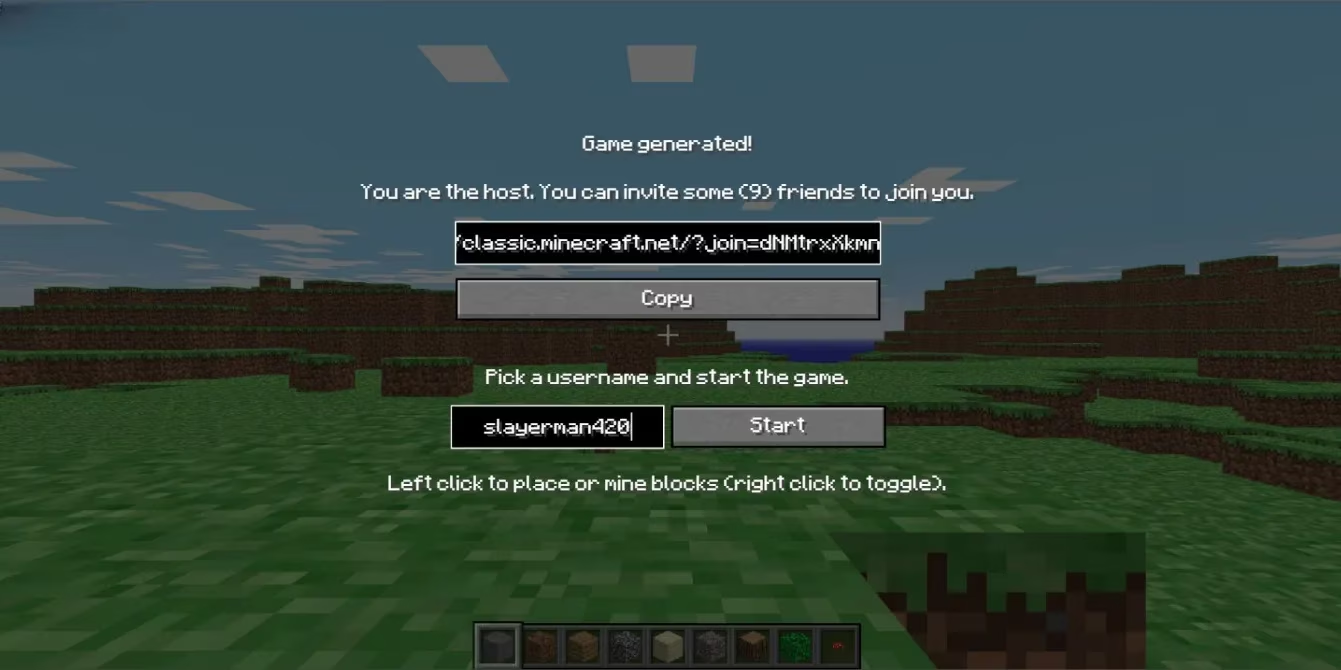
This version is a nostalgic time capsule—32 blocks of pure, unadorned creativity. No hunger bar, no sprinting, just the essence of placing and breaking cubes while a greenish sky watches over. It runs on any Chromebook, even those locked tighter than a guardian temple. The player doesn’t even break a sweat; the browser does all the heavy lifting. It’s perfect for a quick lunchtime build or proving to a sibling that yes, this little device can game.
Which Path Should a Crafty Chromebook Traveler Take?
Here’s the quick and dirty breakdown to help decide:
| Method | Cost | Performance | Setup Difficulty | Best For |
|---|---|---|---|---|
| Google Play (Bedrock) | $19.99 (or $13 upgrade) | Smooth, touch-friendly | 🟢 Very Easy | Casual builders, cross-platform play |
| Linux (Java) | Free after .deb download | Requires decent Chromebook | 🟡 Moderate | Mod lovers, hardcore server communities |
| Web Classic | Free! | Light as a feather | 🟢 Instant | Quick fixes, restricted devices, nostalgia |
Each method has its own flavor. The Bedrock route feels like installing a polished app, the Java route is for tinkerers who like to whisper sweet commands to a terminal, and the Classic route is the equivalent of finding a vintage arcade machine in a laundromat—simple, charming, and surprisingly satisfying.
In 2026, the Chromebook is no longer just a thin client pretending to be a computer. It’s a legitimate Minecraft machine, hiding in plain sight. All it takes is a few clicks, a little Linux whispering, or just opening a browser tab. The blocks await. Go place ’em.
The following analysis references CNET - Gaming to frame why Chromebooks have become more viable for Minecraft in 2026: modern ChromeOS support for Android apps and the built-in Linux development environment increasingly turns “lightweight” hardware into a flexible gaming setup. That broader device-and-software convergence helps explain the three practical paths outlined here—Bedrock via Google Play for the smoothest plug-and-play experience, Java via Linux for mod-friendly depth, and a browser-based Classic option when installs are restricted or performance needs to stay minimal.